Select a calendar and enable sync
Open Profile → Settings → Calendar Sync on iPhone or Android. The web app cannot access this device calendar.
- Enable sync and allow calendar access.
- Select a writable calendar. If none is available, add a calendar account on your device first.
- After selecting it, check that the switch is on and enable it again if needed. Sync Now starts a transfer immediately.
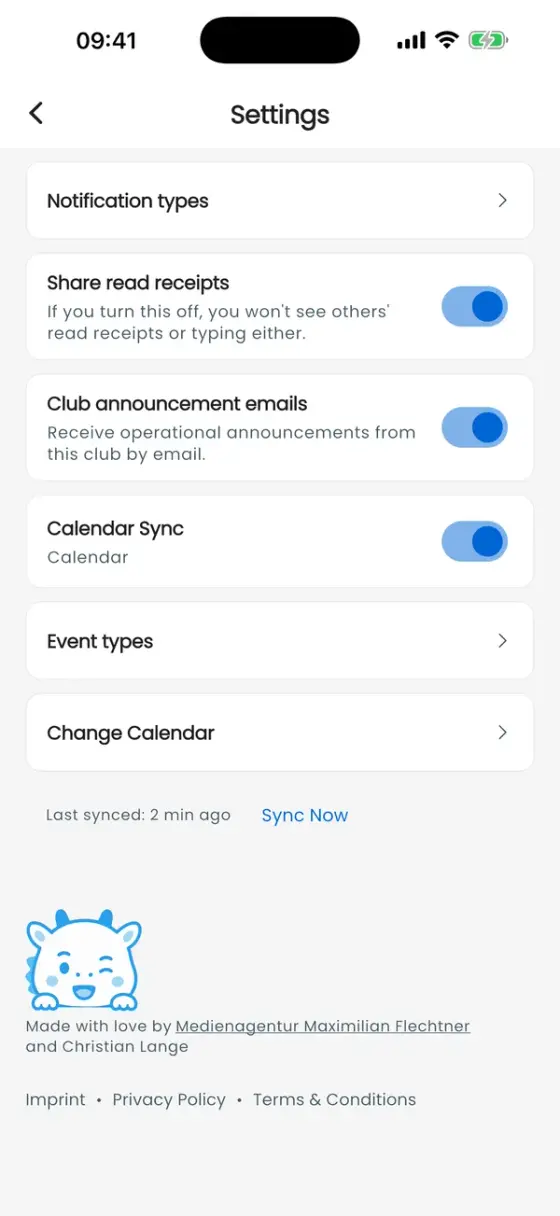
Choose the dates to include
Under Event types, select Training, Team Events, Competitions and optionally Birthdays. Birthdays are off by default. Closing the sheet saves your selection and applies it when sync is enabled.
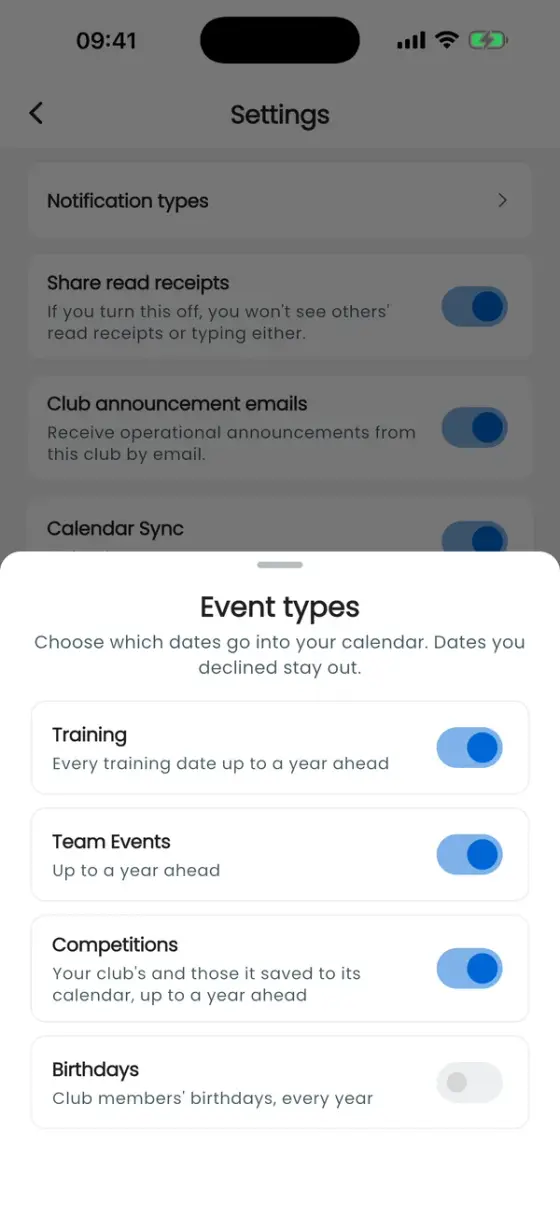
Sync includes upcoming events in the active club up to 365 days ahead, plus events still in progress. Declined and cancelled dates are excluded. Training sessions become individual entries; birthdays become yearly all-day entries.
Changes and individual events
The app syncs at startup, when enabled, after changing event types, and through Sync Now. It updates changed dates and removes future entries that were cancelled, declined or deselected. Past entries remain in the calendar.
The calendar icon inside an event also lets you add just that one date. Editing the copy in your calendar app does not change the club event.
If something is missing
Check calendar permission, destination calendar, event types, active club and your RSVP. Open the app online and tap Sync Now. An error may mean some entries were not transferred; check the destination after retrying. Switching sync off stops future transfers but keeps existing calendar entries.