The Events tab
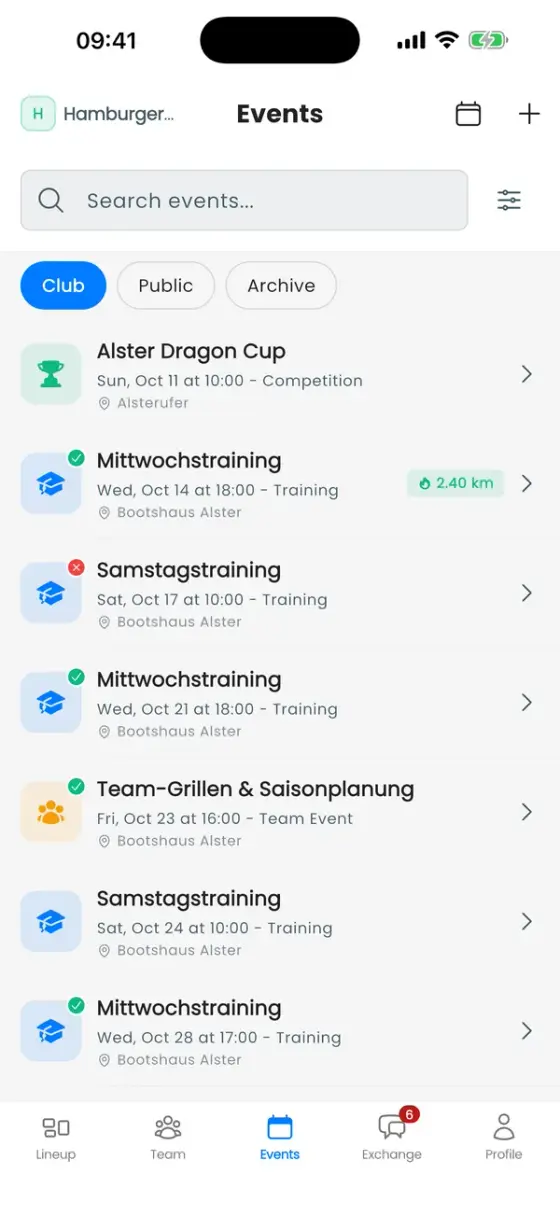
Events shows three lists:
- Club: your club's trainings, team events and competitions, grouped by day. A green or red dot on the icon shows your own answer.
- Public: the public race calendar with competitions from all clubs (see Races and regattas).
- Archive: past events.
The calendar icon at the top switches between list and month view. The filter button lets you narrow the list by type, date range, distance, training group, or hide birthdays.
Create an event
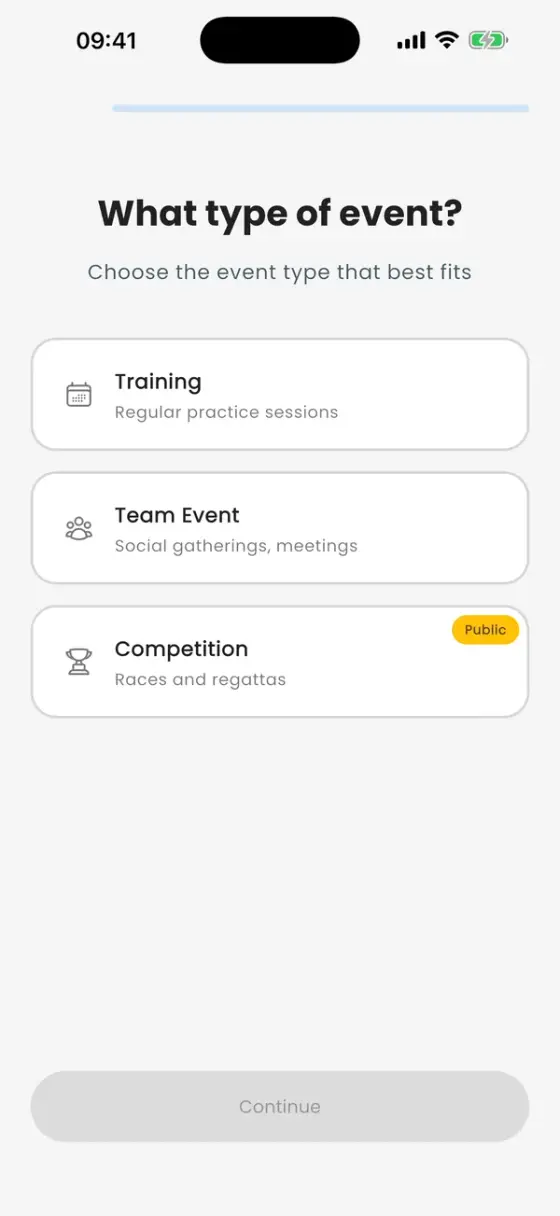
Coaches and admins (anyone with Manage events) see a + in the top right. First choose the type:
- Training: regular practice. Trainings always repeat: daily, weekly, every two weeks or monthly, with an optional end date.
- Team Event: social gatherings, meetings, anything just for your club.
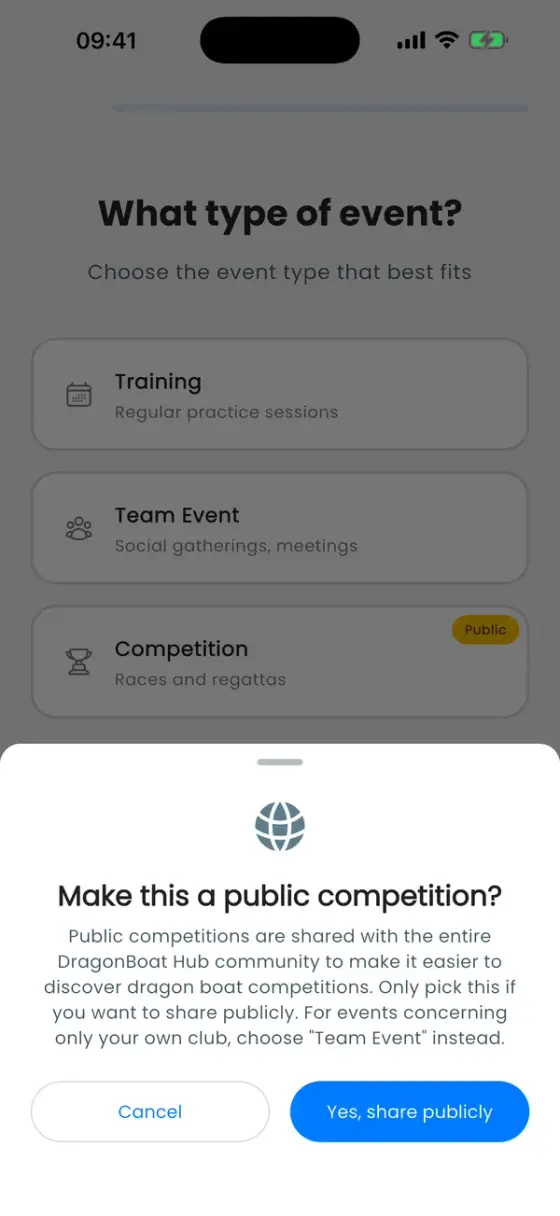
- Competition: races and regattas. Competitions are public: they appear in the race calendar for every DragonBoat Hub user, so the app asks you to confirm. For club-only events use Team Event.
The wizard then asks for a name and description, start and end time, an optional meeting time, the location, and optional images and documents (flyers, race plans, info sheets). Times are always shown in the local time of the venue. For a competition, the wizard also asks for a registration deadline, the Registration Mode and the Competition Details: classes, distances, price per team and team limit (more in Races and regattas).
When you edit a repeating training, the app asks whether the change applies to this event only, this and future events or all events.
Say whether you're coming
Open an event and tap Going or Not Going at the bottom. There is no "maybe": until you answer, you count as not responded.
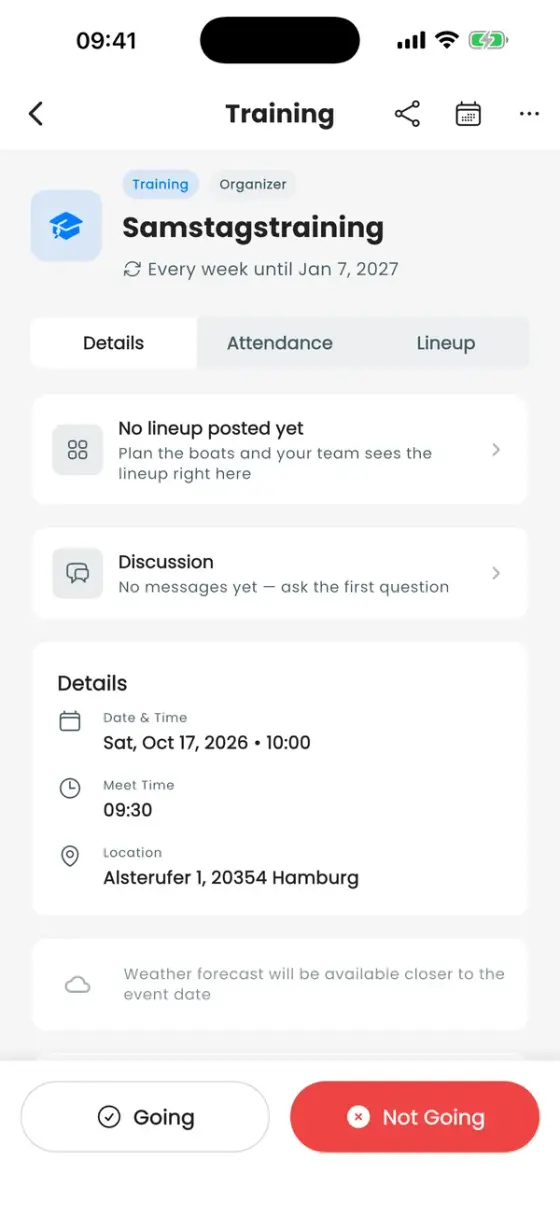
If answering fails, you may not have a paddler profile in this club yet. Check Profile → Paddler Profile.
Bring a guest
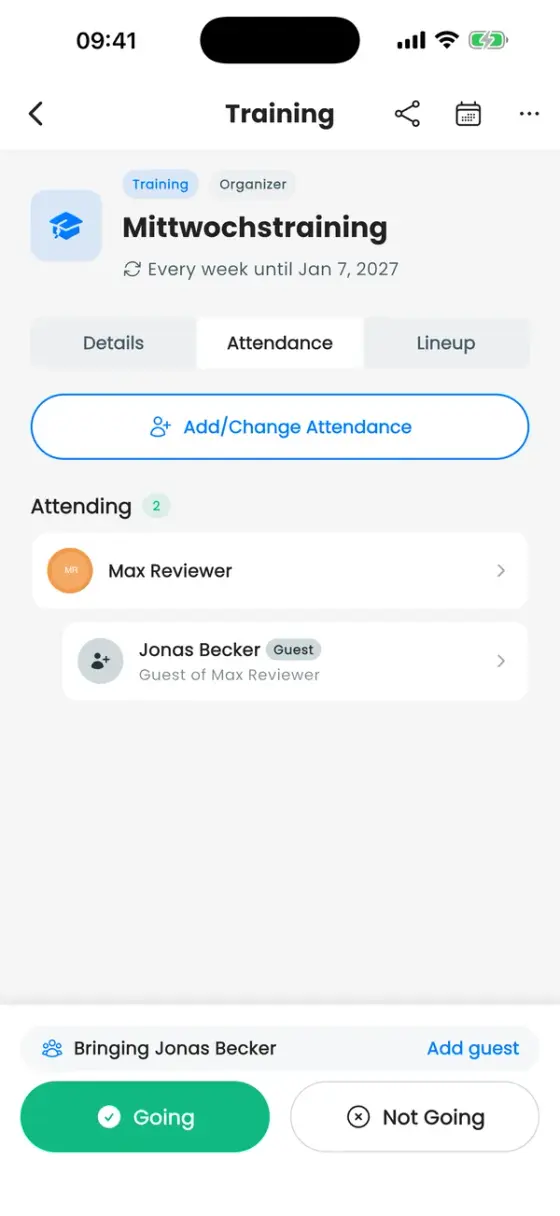
After you've tapped Going, a Bring a guest row appears above the buttons. Enter the guest's name, gender and weight. The weight is only visible to you and your coaches, and coaches can seat your guest in the lineup like anyone else.
- Guests belong to one single event. For a repeating training, add them again next time. The sheet remembers guests you brought before.
- Guests count towards the headcount but don't appear in club statistics.
- If you switch to Not Going, the app asks whether your guests should still come.
Attendance
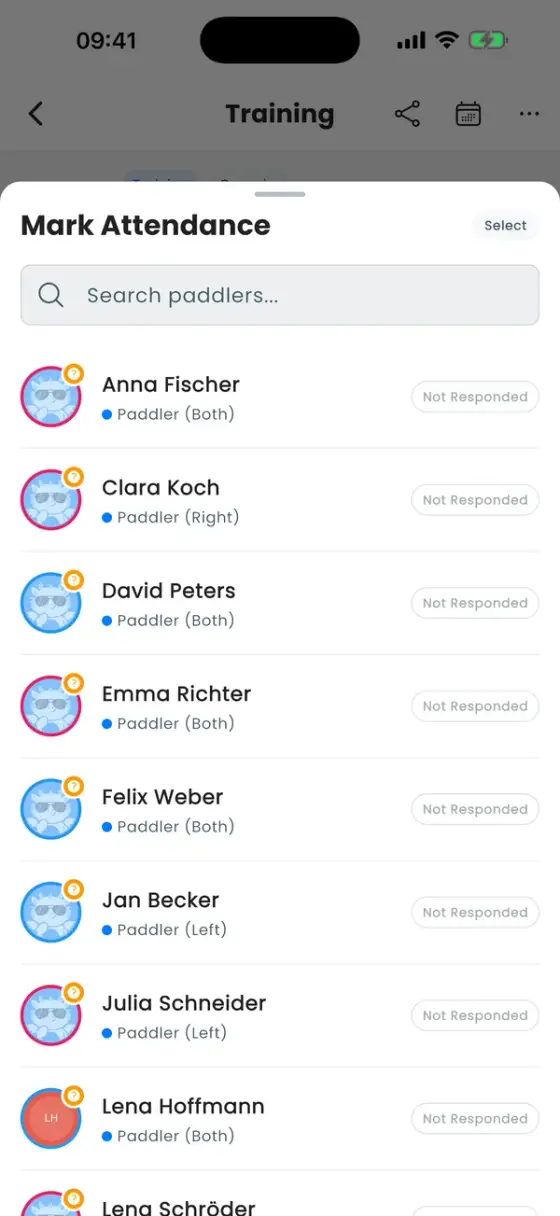
The Attendance tab lists who is coming, including guests. Coaches have an extra button, Add/Change Attendance, to answer for paddlers who told them in person or by message. Entries changed by a coach are marked with their name.
RSVP vs. who actually paddled. An RSVP is a plan. What counts for a paddler's season stats is the crew a coach confirms after a training (see Training and workouts).
Reminders and notifications
DragonBoat Hub reminds you about events you're invited to:
- Reminder the day before (24 hours before the start)
- Reminder shortly before (2 hours before the start)
Switch them on or off under Profile → ⚙ Settings → Notification types. You can also turn off notifications about new events, training feedback, race days and Hub replies there. Cancellations and changes to an event are always sent, so nobody turns up to a training that isn't happening.
Discussion and calendar
- Every event has its own Discussion on the Details tab, for questions like "who brings the drum?". The same thread also appears in the Exchange tab.
- The calendar icon on an event adds it to your phone's calendar. To sync all events automatically, use Settings → Calendar Sync.
Cancel or delete an event
Open the event and tap ••• at the top right:
- Cancel Training / Cancel Event: members still see the event, marked as cancelled, and get a notification. You can restore it later. Trainings that are already over can't be cancelled.
- Delete Event: removes the event and all its RSVPs for good.