Start a recording
Open a Training event and scroll down the Details tab to Start Workout. Any member can record. Recording works in the iPhone and Android app (not in the browser), and only on trainings, not on team events or competitions. Want to record without an event? Use the Apple Watch and start a Quick Workout.
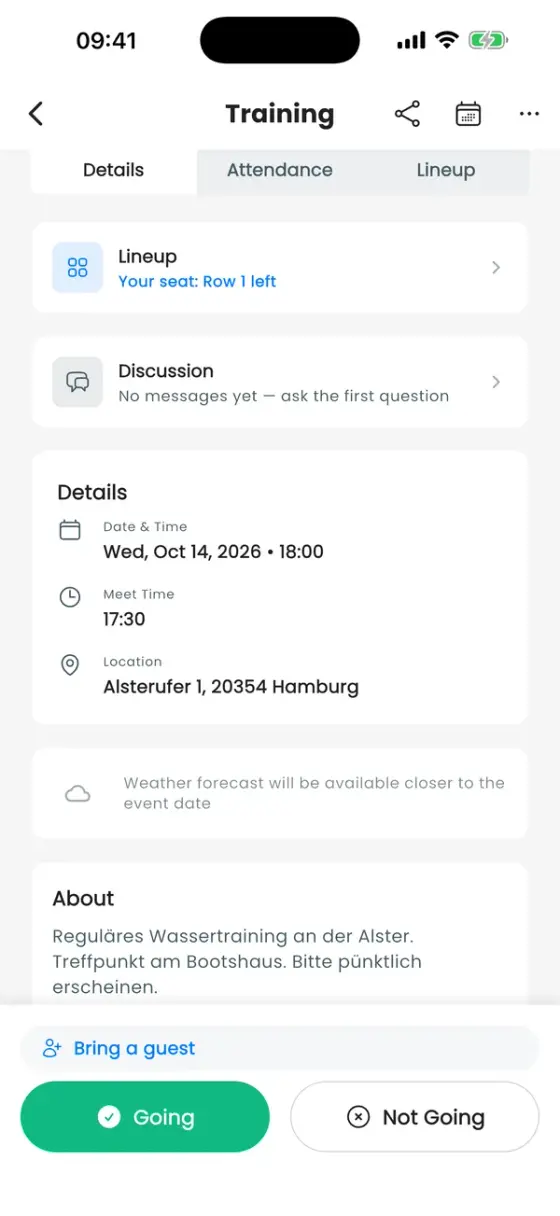
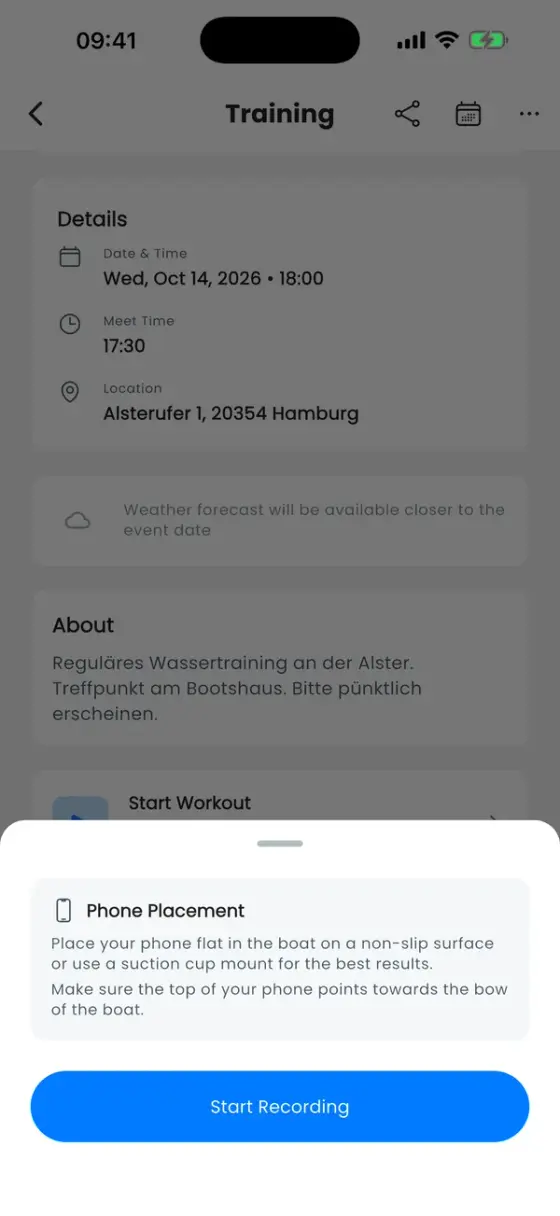
Place the phone flat in the boat, on a non-slip surface or in a suction-cup mount, with the top of the phone pointing towards the bow. That's how it recognises strokes correctly. Then tap Start Recording. The app asks for location access the first time.
Android: some phones pause apps in the background to save battery. If the app warns Battery optimisation may stop tracking, allow unrestricted battery use so the recording keeps running. On some Android phones the screen also has to stay on for stroke detection.
While you paddle
The live view has three pages you can swipe through: your figures, a live map and your splits. At the top you see whether it is recording and how good the GPS signal is (GPS searching, GPS good, GPS weak, GPS lost). Heart rate and active energy appear when an Apple Watch is connected.
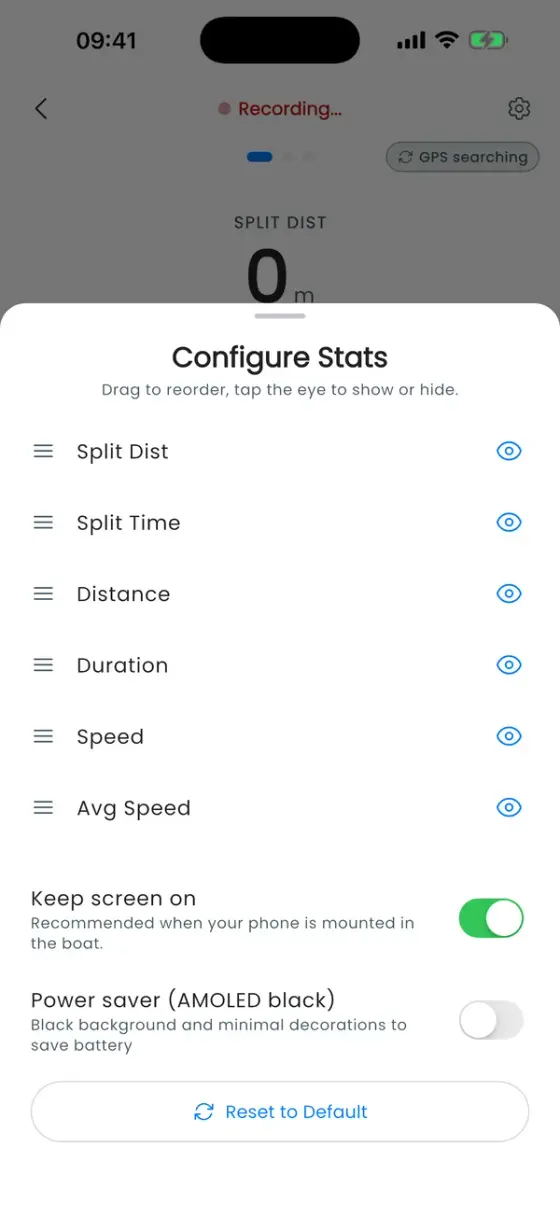
- Choose your figures: the cog at the top right lets you reorder the tiles (drag) and hide the ones you don't need (eye icon). Keep screen on is recommended when the phone is mounted in the boat, and a power saver mode switches to a black screen.
- Stroke rate: detected automatically from the phone's motion. Tap the stroke rate tile for Manual Measurement: tap on the 1st and the 3rd stroke and the app calculates strokes per minute.
- Splits: tap Split for a manual split, or tap the Auto split bar at the bottom to split automatically every 100, 200, 250, 500 m, 1 km or a distance of your own, once or repeatedly. Everything about intervals is in Auto Split and start calls.
- Start calls: in the same sheet, "Are You Ready? · Attention! · GO!" can be called out before the start and before every auto split. Start on movement holds the timer until the boat moves. Vibration and Sound cue you at 50 %, 90 % and at each split.
- Pause stops the clock, for example while you wait for the other boat.
You can leave the live view and use other parts of the app: the recording continues, and a Recording banner above the tab bar takes you back.
End the recording
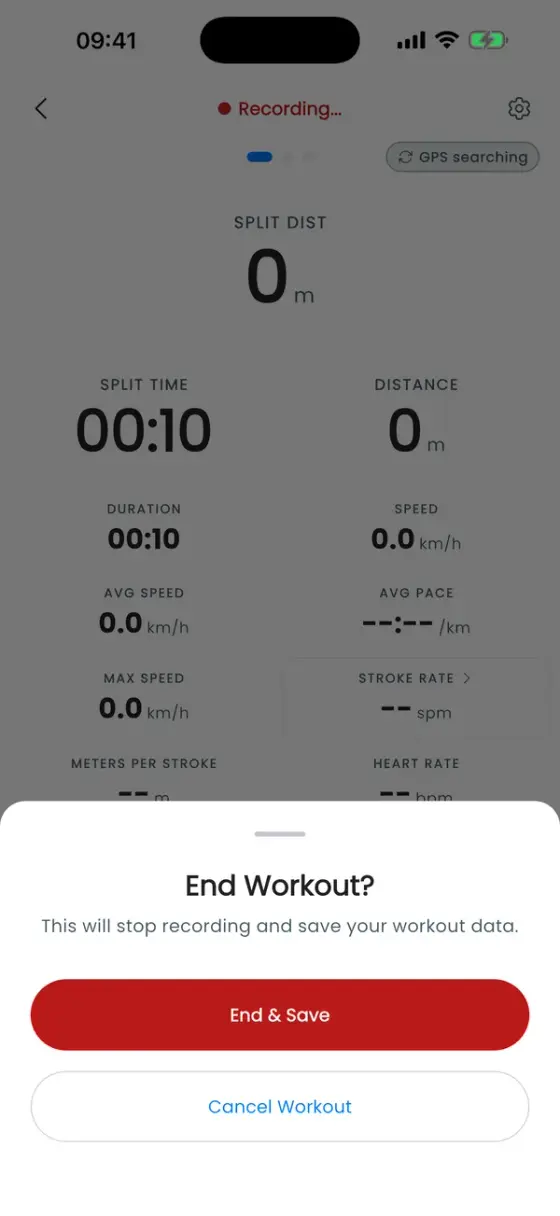
Stop Workout, then End & Save. The app shows Workout Complete! with your first figures. Recorded without signal? The workout is saved on your phone, marked Not synced, and uploads as soon as you're online.
What you can read from a recording afterwards — charts, map, split comparison, export and share images — is explained in Workout analytics.
Who was on the water
An RSVP says who planned to come. After a training, a coach confirms who actually paddled: Who was on the water? suggests the crew from the saved lineup or from the people who said Going. If several boats were planned, the app first asks which boat this recording belongs to. One tap on All … are correct, or Review crew to adjust it, and you're done.
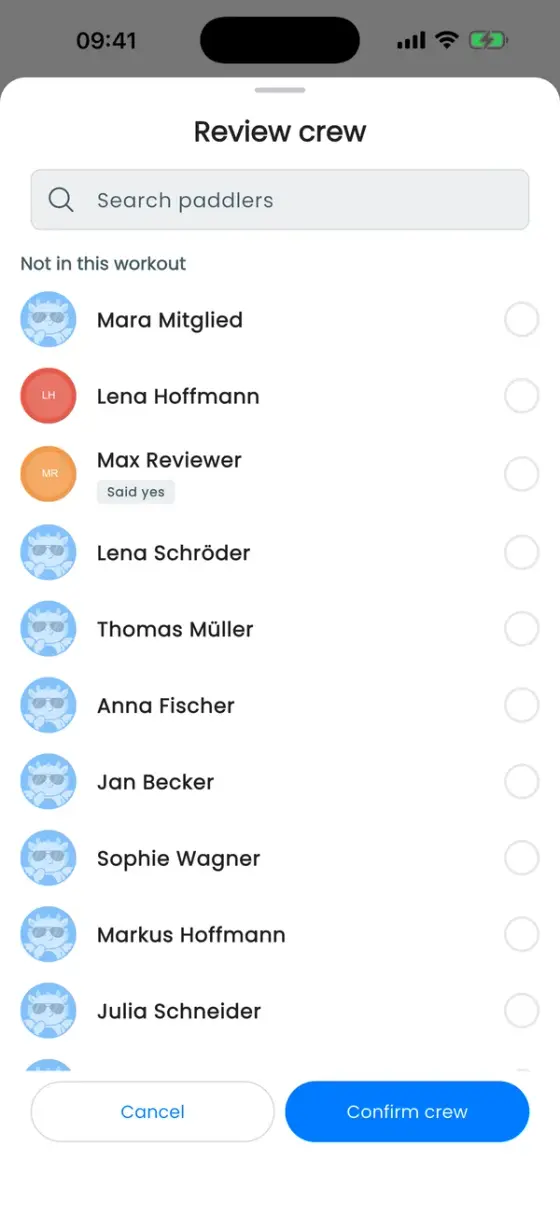
Only confirmed crews count for My Season and the club's confirmed participation. Paddlers without the Confirm workout crews permission see "A coach can confirm the crew later".
Rate how hard it was (Borg scale)
Clubs can ask paddlers to rate each training on the Borg scale (6–20):
- The owner switches on Enable Borg Scale under club ••• → Edit Club.
- On each training, switch on Request Borg RPE rating.
After the training, paddlers get a nudge to rate it, and coaches see an overview per training. What the scale means and how to use it for planning training: Borg scale (RPE).
My Season
The My Season card at the top of your Profile shows confirmed trainings, kilometres on the water and time with the crew, month by month, plus small milestones along the way. You see your own rank among the club's active paddlers and the highest count in the club, but never anyone else's name or numbers.