What Auto Split does
Interval training on the water usually means someone shouting "go!" and someone else watching the clock. Auto Split does both for you: the app splits your recording automatically every time the boat has covered a distance you choose, for example every 500 m. Each split gets its own time, speed and pace, so afterwards you can see at a glance whether the crew held its speed from the first piece to the last.
You can use it when recording a training on your phone (see Recording a training) and on the Apple Watch.
Set it up on the phone
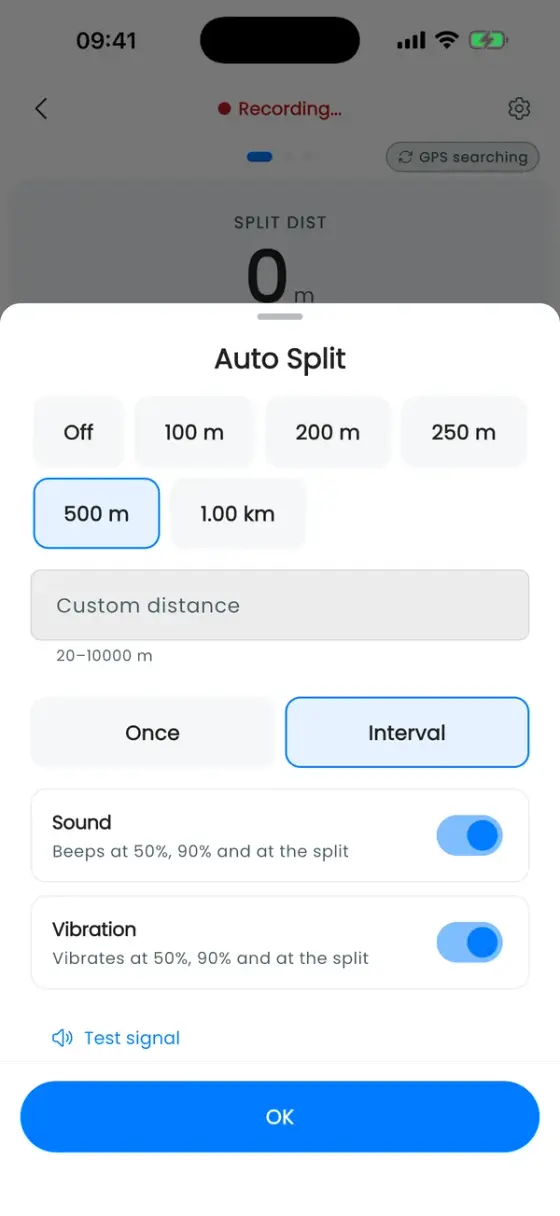
Start a recording, then tap the Auto split · off bar at the bottom of the live view. The Auto Split sheet opens:
- Distance: Off, 100 m, 200 m, 250 m, 500 m or 1 km, shown in your units. Need something else? Enter it under Custom distance (20 m to 10 km).
- Interval or Once: split at that distance again and again for the whole workout, or just once.
The bar then shows the distance and how far it is to the next split, for example "300 m to go". You can change the distance at any time during the workout.
Start calls
Switch on Start calls in the same sheet, and the app calls the start out loud: "Are You Ready? · Attention! · GO!". It does that before the start and before every automatic split, so each piece starts like a race. A countdown overlay shows on screen, and Cancel countdown stops it if you need a moment longer.
Start on movement goes one step further: the timer waits until the boat actually moves, so standing around at the start line doesn't count. The live view shows Waiting for movement... until you're off. This applies from the next start.
Cues before and at each split
So you don't have to look at the phone:
- Vibration: vibrates at 50 %, at 90 % and at the split itself.
- Sound: beeps at the same moments.
Test signal plays the cue once so you can check the volume before you go out. You can always add a split of your own with Split in the live view.
On the Apple Watch
The watch has its own split settings on your iPhone under Profile → ⚙ Settings → Apple Watch: Auto Split (Off, 100 m, 200 m, 250 m, 500 m or 1 km), Repeat every interval, Start calls, Start on movement, Vibration and Sound. During a workout, the splits page on the watch shows the current split as a ring and your last splits, and you can change Auto Split right there.
Compare your pieces afterwards
Open the workout to see every split: the Splits table lists distance, time and speed per split, plus a time scaled to the common distance (for example "500 m eq."), so a 600 m warm-up and a 500 m piece can still be compared. Split insights compare all splits of the same distance: your best, the average, the gap between fastest and slowest, and whether you finished stronger or dropped off.
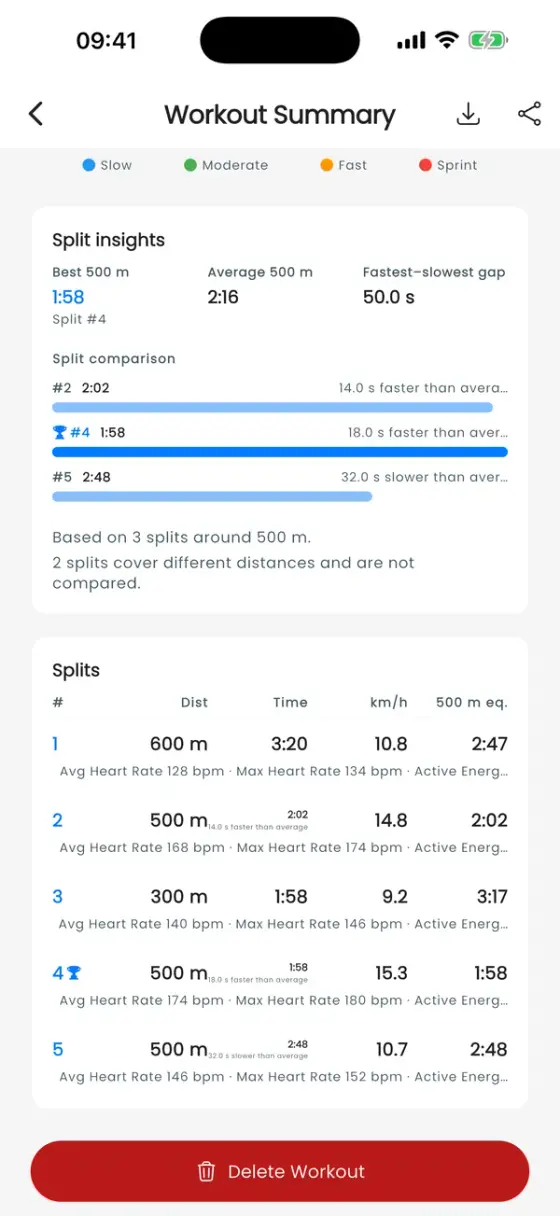
Exporting as TCX keeps your splits as laps in Strava, Garmin Connect and other tools. More in Workout analytics.