The Lineup tab
The Lineup tab is where coaches build the boat. It is only visible to roles with View performance data (owner, admin and trainer by default). Paddlers see the finished lineup on the event's Lineup tab once you've saved it.
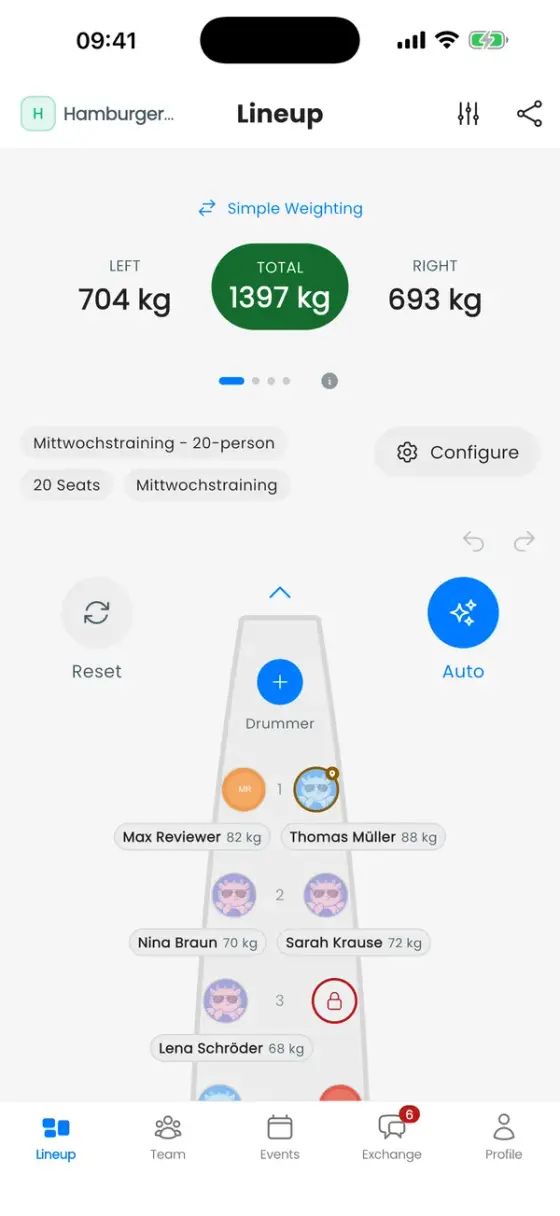
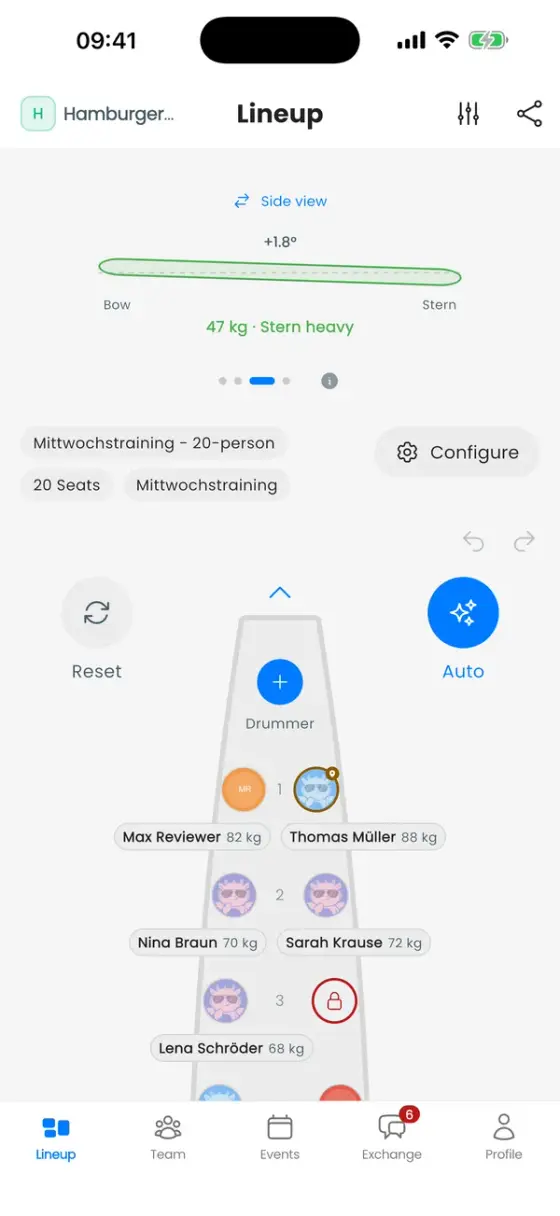
From top to bottom:
- Balance panel: four pages you can swipe through (explained below).
- Boat chips: boat name, number of seats and the event. Configure changes them.
- Undo / Redo for every seat change.
- Reset empties all seats. Auto fills the boat automatically.
- The boat: drummer at the front, ten benches (or five in a small boat), steerer at the back.
Choose event and boat
Tap Configure to open Edit Boat Configuration:
- Event: the training or race this lineup belongs to. The picker has two tabs. Current lists upcoming events. History lists finished events with their lineups, read-only, with Copy to current lineup, handy for reusing last week's boat.
- Select Boat: one event can have several boats (e.g. "Race Boat 1" and "Race Boat 2"). Create New Boat adds one. The ⋮ menu next to a boat offers Rename, Duplicate and Delete.
- Boat Type: 10 Seats or 20 Seats.
- Target Trim: what the automatic lineup aims for (see How the automatic lineup decides).
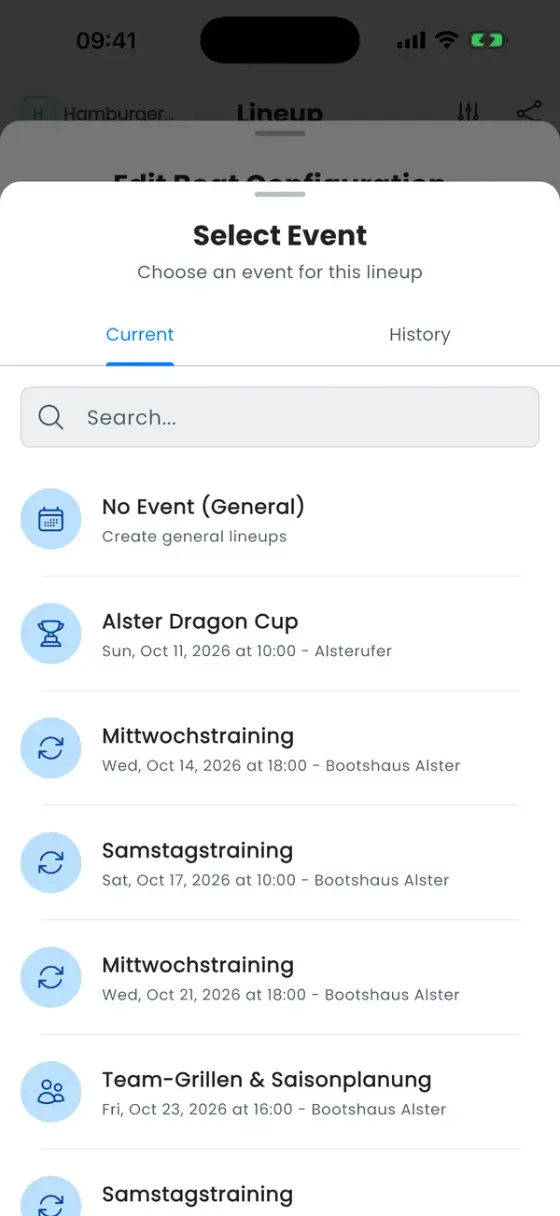
Temporary Boat: without an event, you're working on a scratch boat. You can try things out, but it can't be saved. Pick an event first if the crew should see the lineup.
Place paddlers
Tap a seat
Tap any seat to choose who sits there. The list starts with Suggested paddlers: people who usually sit there, match the side, or improve the balance. Then come the remaining paddlers, then Already Assigned ones (picking one of those moves them).
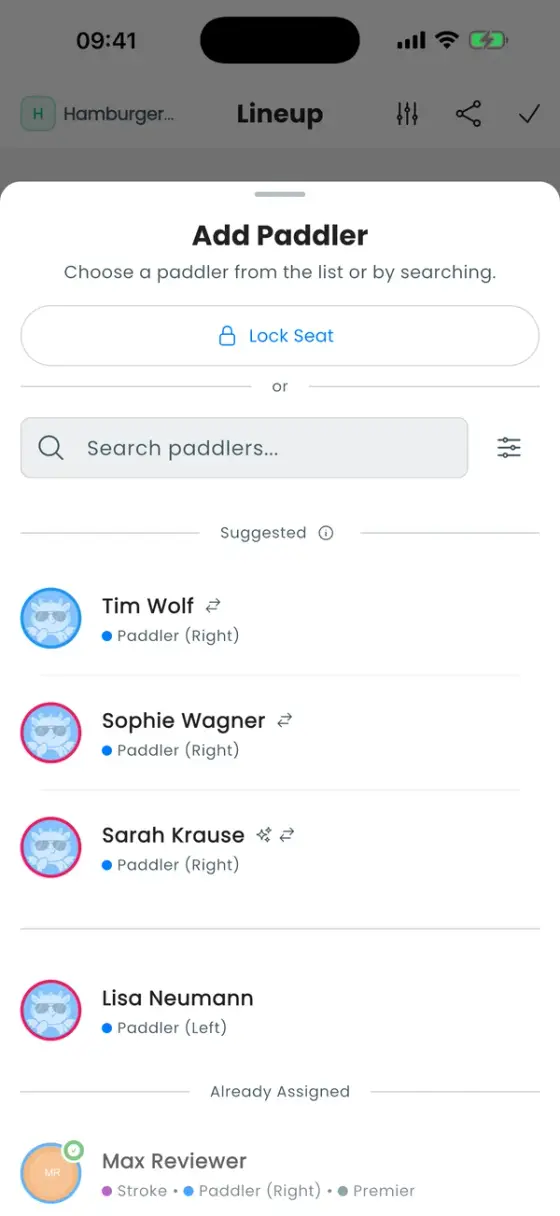
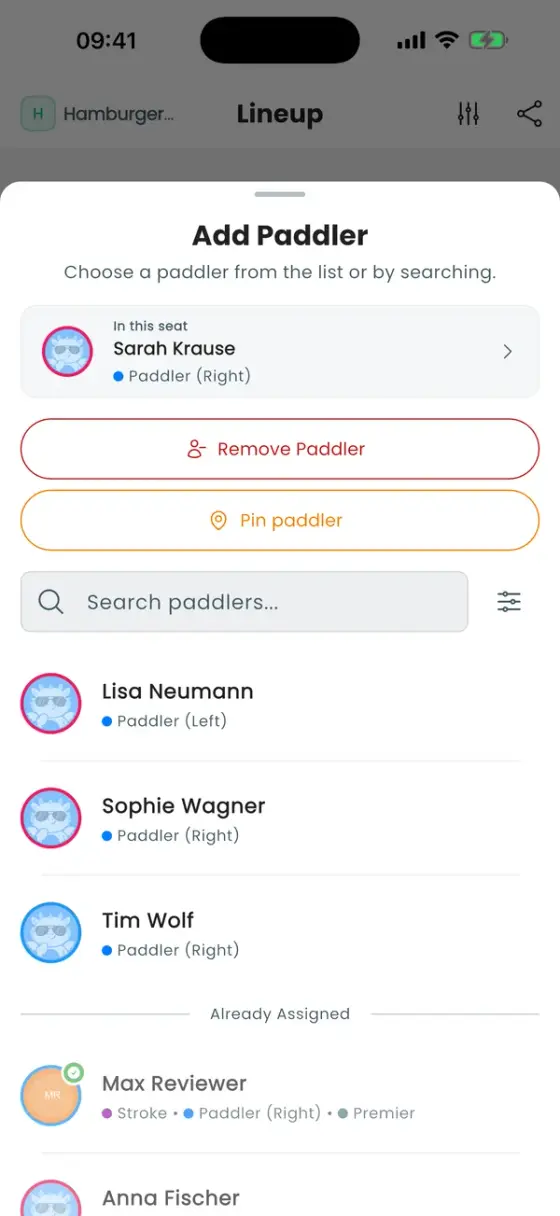
A warning triangle next to a name means the seat clashes with that person's settings, for example their excluded side. You can still choose them.
Drag and drop
Press and hold a paddler, then drag them onto another seat. If the seat is taken, the two swap. To take someone out of the boat, drop them onto the Drop here to remove from boat bar.
Fill the boat automatically
Auto opens Auto-Alignment, chooses a lineup for the paddlers you select and places them in one go. One tap on Undo brings back your previous lineup. How it decides, and how to steer it, has its own page: How the automatic lineup decides.
Pin paddlers and lock seats
- Pin paddler (seat sheet of an occupied seat): this person stays where they are, even when you run Auto. A small pin marks them.
- Lock Seat (seat sheet of an empty seat): nobody sits here. Use it for seats you don't want to use, for example the front benches when a 20-seat boat goes out with ten paddlers. Auto skips locked seats.
Drummer and steerer seats can't be locked.
Read the balance figures
Swipe the panel at the top to switch between four pages. The (i) button explains each value in the app.
- Weight distribution: kilograms on the left, on the right, and the total. The switch at the top changes between Simple Weighting (plain kilograms) and Bank-weighted (kilograms times distance from the boat's centre, so a heavy paddler at the bow counts for more than one in the middle).
- Paddler statistics: paddlers seated, women in the boat (for mixed-crew rules), and how many paddlers sit on their preferred side (Side Match) and in their preferred section (Position Match).
- Moments: Lateral Balance (left/right), Longitudinal Trim (bow/stern) and Propulsion (difference in power, if propulsion scores are filled in). Green is good, amber acceptable, red off balance. The switch shows a Side view of how the boat would sit in the water.
- Status: a quick check. Perfect Trim! means everything is green.
Editor settings
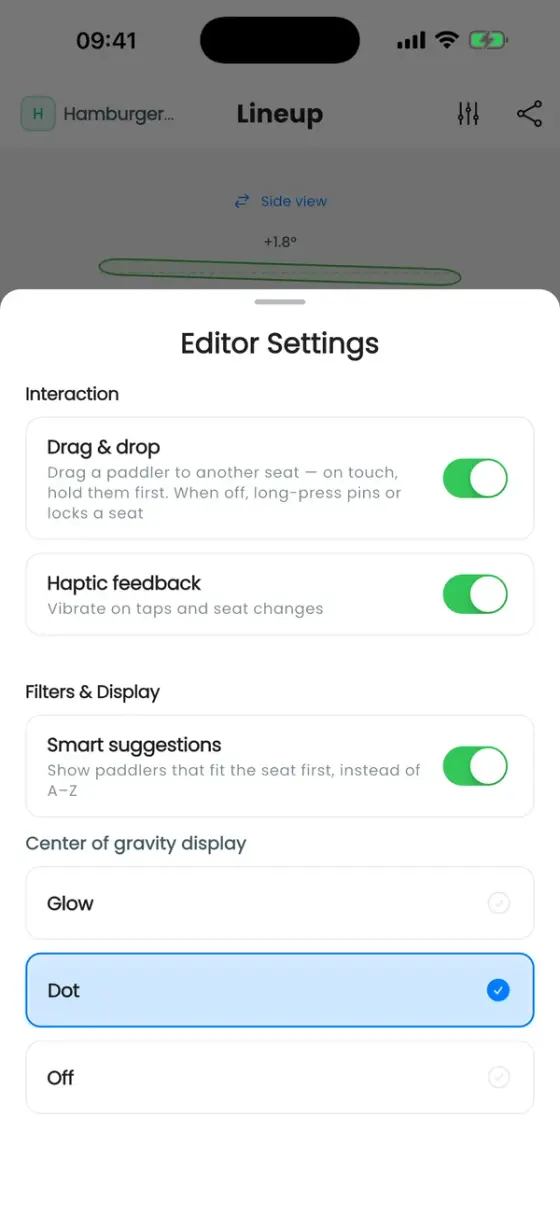
The sliders icon at the top opens Editor Settings:
- Drag & drop: on by default. Switch it off and a long press pins a paddler or locks a seat instead.
- Haptic feedback on taps and seat changes.
- Smart suggestions: shows the best-fitting paddlers first in the seat sheet instead of A–Z.
- Center of gravity display: Glow, Dot or Off. Shows where the crew's centre of gravity is on the boat.
Save and share
- The ✓ at the top saves the lineup and publishes it to the event. It only appears when there are unsaved changes. Your crew then sees Your seat: … on the event's Lineup tab.
- The share icon offers Share as image, a picture of the boat for WhatsApp and the like, and Send to a channel, a live lineup card in your club chat.