The four built-in roles
Every member of a club has exactly one role. The app comes with four:
- Owner: the person who created the club. There is always exactly one owner.
- Admin: runs the club together with the owner, including who is a member and which role they have.
- Trainer: what most clubs call a coach. Plans events and lineups and sees performance data, but cannot change other members' roles.
- Paddler: the default for everyone who joins with the invitation code.
Make someone an admin or a coach
This is the most common question we get, so here is the full path:
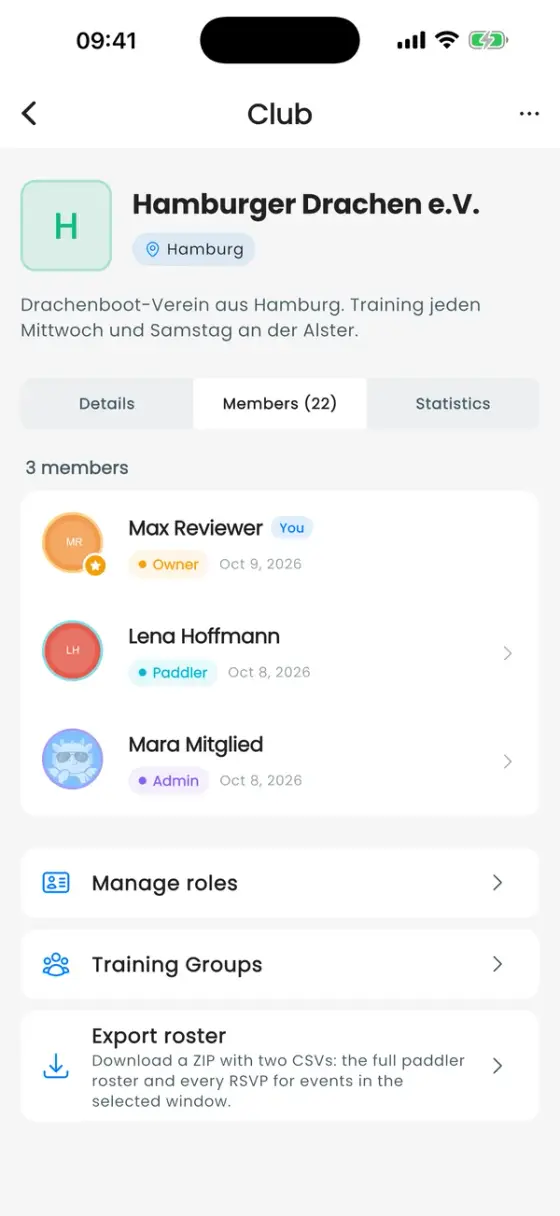
- Go to Profile, scroll to Club Memberships and tap your club.
- Open the Members tab.
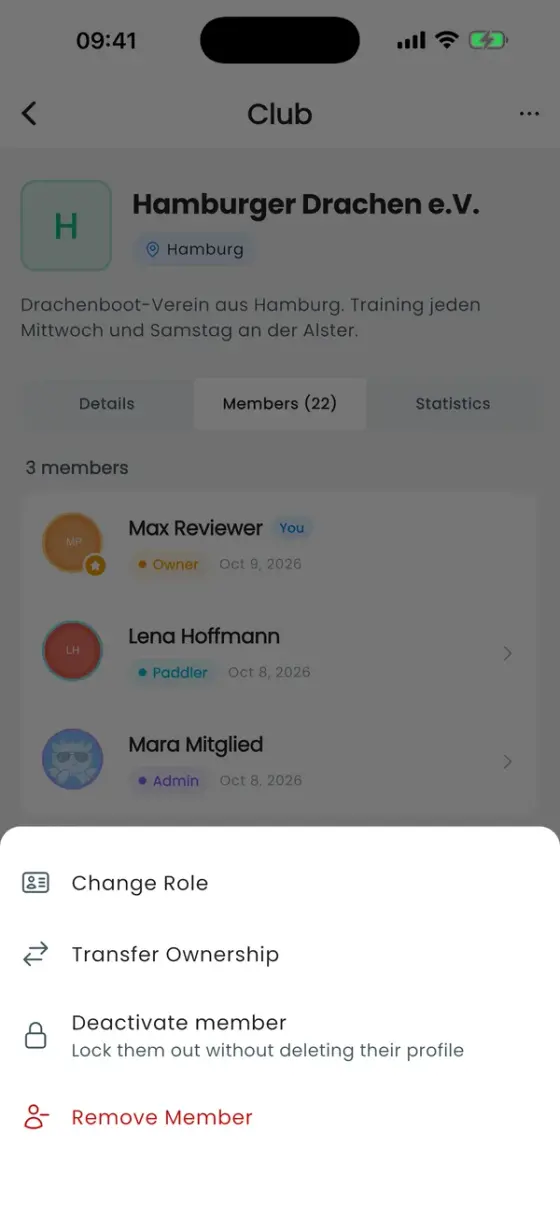
- Tap the person.
- Choose Change Role and pick Admin, Trainer or any custom role.
The change applies immediately. You need the Manage members permission to do this. Owners and admins have it by default, trainers do not.
Two coaches who should both be admins? Give each of them the Admin role. Admins can do everything a trainer can, plus manage members. If you'd rather keep them as trainers and only add one extra right, edit the Trainer role instead (see below).
Can't find the person? The Members tab only lists people who have joined with their own account. A paddler the coach added to the roster ("Pending" on the Team tab) needs to join with the invitation code first.
What each role can do
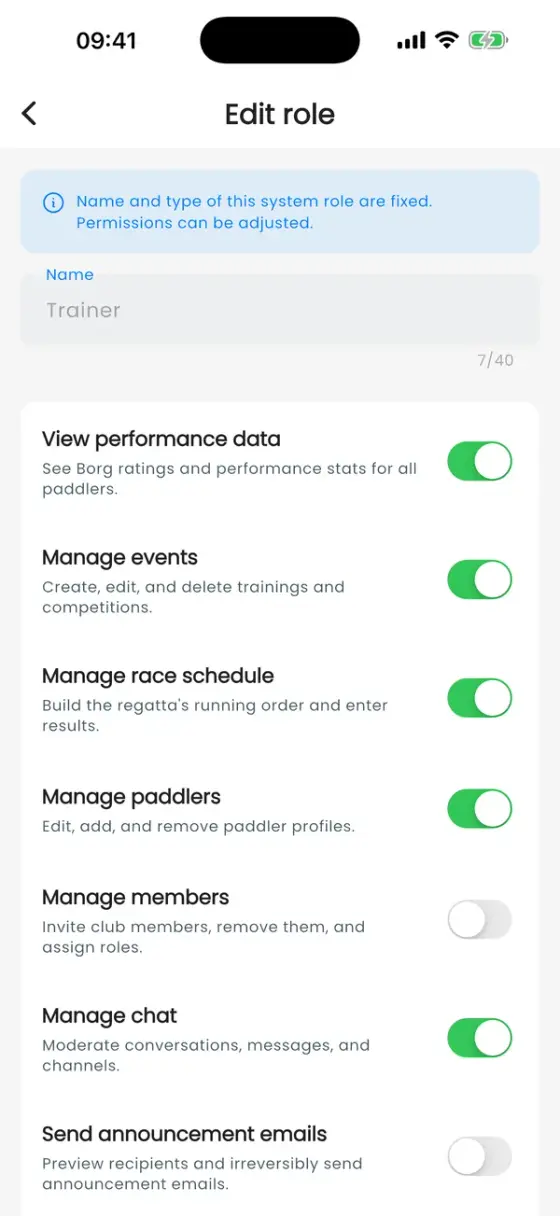
These are the defaults. The owner can change every row except for the Owner column.
| Permission | Owner | Admin | Trainer | Paddler |
|---|---|---|---|---|
| View performance data (weights, the Lineup tab) | ✓ | ✓ | ✓ | |
| Manage events | ✓ | ✓ | ✓ | |
| Manage race schedule | ✓ | ✓ | ✓ | |
| Manage paddlers (roster) | ✓ | ✓ | ✓ | |
| Manage members (roles, remove) | ✓ | ✓ | ||
| Manage chat | ✓ | ✓ | ✓ | |
| Create channels | ✓ | ✓ | ✓ | |
| Manage training groups | ✓ | ✓ | ✓ | |
| Share invitation code | ✓ | ✓ | ✓ | ✓ |
| Deactivate members | ✓ | ✓ | ||
| Confirm workout crews | ✓ | ✓ | ✓ | |
| Send announcement emails | ✓ | ✓ |
Adjust a role or create your own
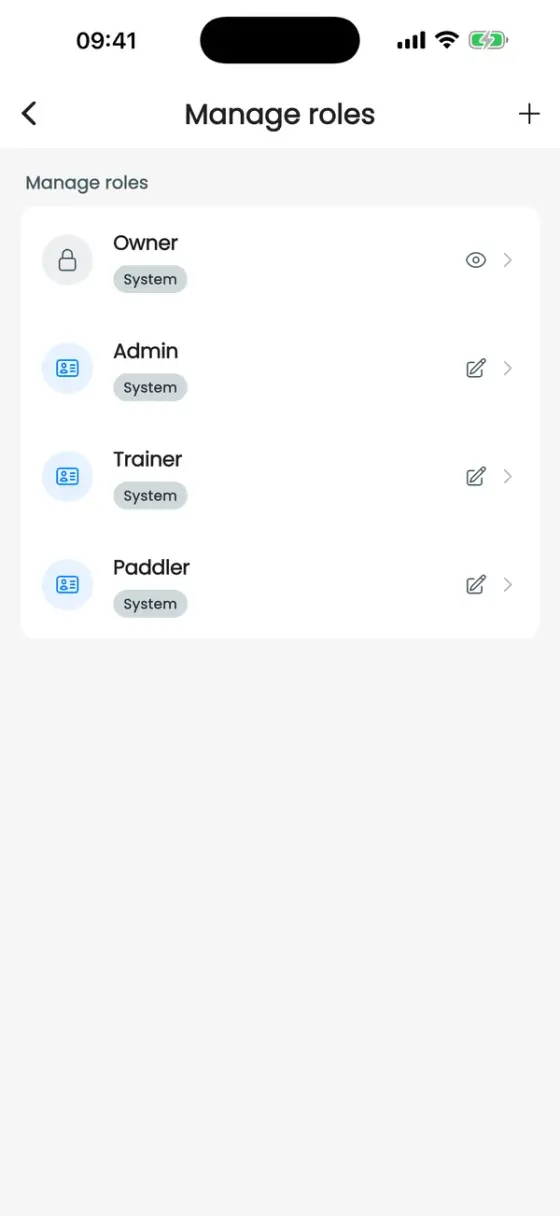
Only the owner can do this. Open the club, go to the Members tab and tap Manage roles at the bottom.
- Tap Admin, Trainer or Paddler to switch individual permissions on or off. Their names are fixed. The Owner role cannot be changed.
- Tap + to create a new role, for example "Team captain" or "Treasurer", with exactly the permissions it needs.
- A role can only be deleted once nobody has it any more.
One role per person. A member can't hold two roles at once. If someone needs the rights of two roles, create a custom role that combines them. Drummer, steerer and stroke are something else: they are positions in the boat, set on the paddler profile (see Team and roster).
Hand over the club
To make someone else the owner, open Members, tap the person and choose Transfer Ownership. You become a regular member. An owner can't leave the club or delete their account before handing it over.
Deactivate or remove members
- Deactivate member locks a person out without deleting anything. They keep their profile, RSVPs and history, see a "Membership inactive" screen with your optional note, and come back with Reactivate member. Useful for unpaid fees or a season break.
- Remove Member ends the membership.