Where to find each view
The app shows the details of a recording, your progress through the year, and your club's figures.
| You want to … | Open … |
|---|---|
| Review one session | Events → training → workout card |
| See your year so far | Profile → My Season |
| Compare club figures | Profile → Club Memberships → your club → Statistics |
Review an individual workout
- Open the training under Events.
- Scroll to the recordings below Start Workout.
- Tap a workout card to open the Workout Summary.
You can see distance, active time, speed and pace. Depending on the recorded data, stroke rate, heart rate and active energy are also available. Charts, the route map and splits help you compare sections. Missing sensor data is not replaced with estimates.
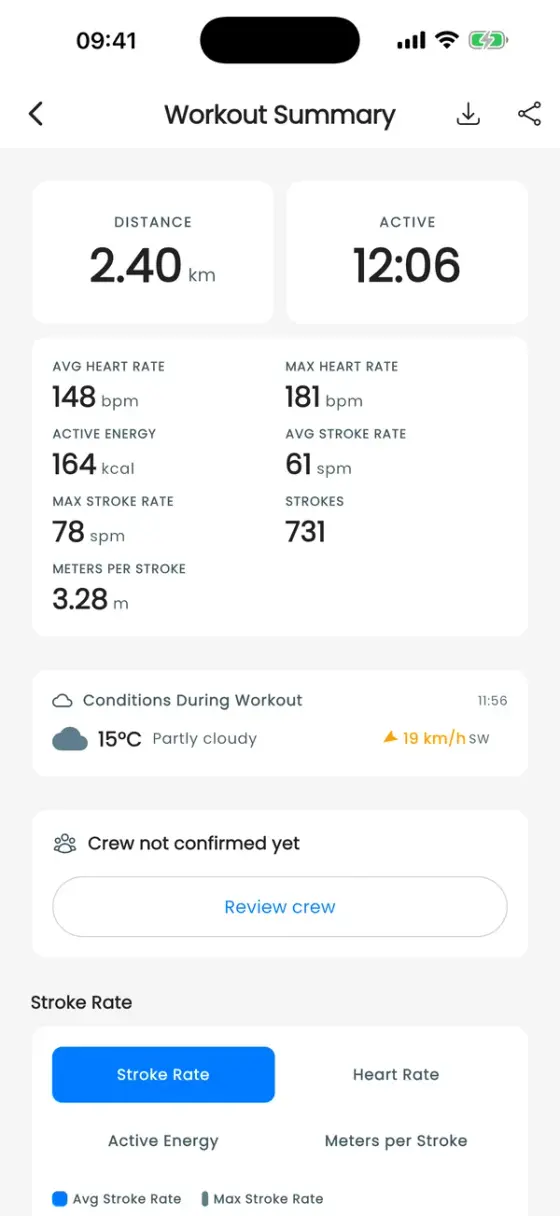
See Workout analytics for reading charts and splits or exporting a recording.
Open your year in your profile
- Select the club whose season you want to view.
- Open Profile and scroll to the My Season card with the year and club name.
- Tap the card to open the full season view.
The card shows your confirmed trainings, kilometres in the boat and time with the crew for the current calendar year. Distance is the shared boat distance from recordings whose confirmed crew includes you; it is not a measurement of individual performance. Time adds up the active training time of those recordings.
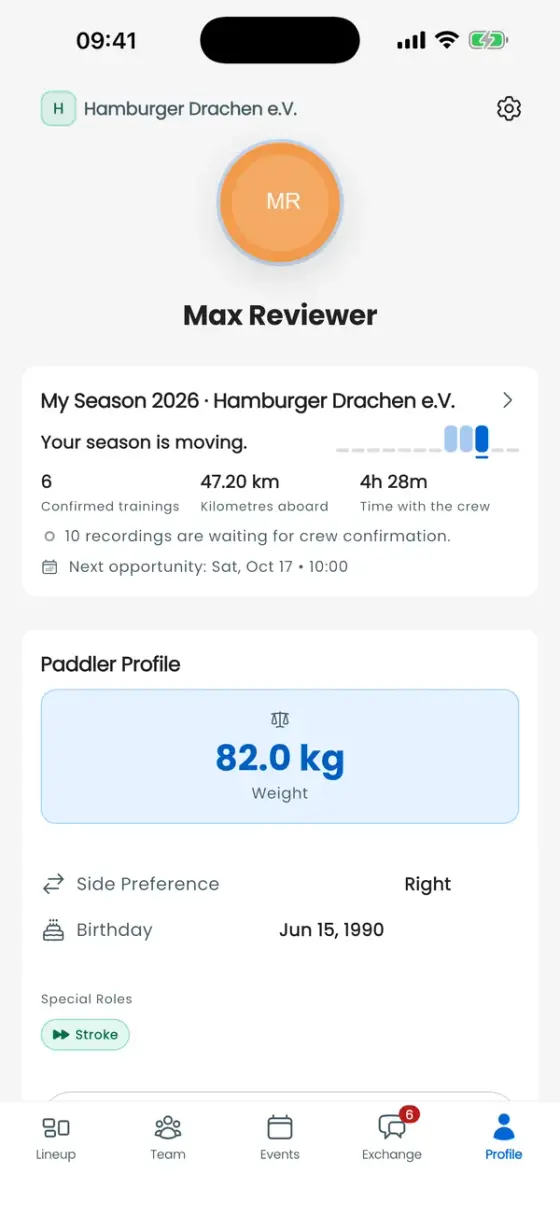
Read your season in detail
The monthly view shows how your confirmed trainings are spread across the year. Tap a month to expand the training entries shown there. Tapping an entry opens its event or recording.
Further down, On the Water shows your totals. When available, your season standing shows your position by confirmed trainings. Season Moments marks milestones such as your first launch and 5, 10 or 25 trainings. Recent Trainings lists the latest entries and their status.
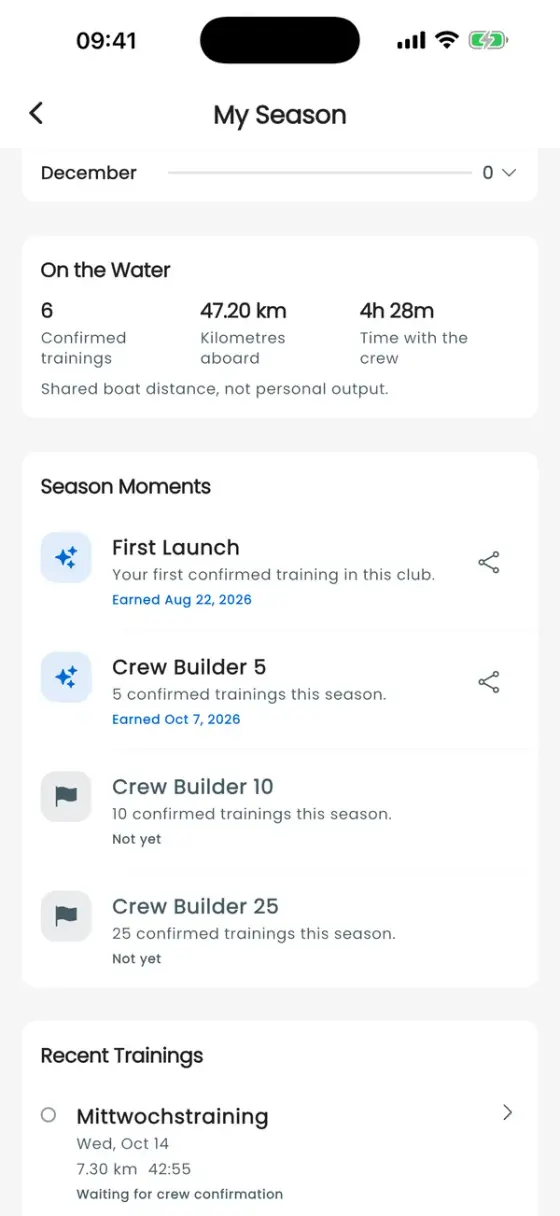
Awaiting crew confirmation means a recording exists but its crew has not yet been confirmed. It does not increase your confirmed season totals yet. If a participation is missing, ask someone with the appropriate club permission to review the recording's crew. If your account has no linked paddler profile, that link needs to be established first.
Filter club statistics
- Open Profile → Club Memberships and tap your club.
- Switch to Statistics.
- Choose the date range and the event types to include using the filters at the top. Confirm with Apply where shown.
You can include trainings, team events and competitions. Date ranges include Last Month, Last 3 Months, Last Year, All Time and a custom range. The first three look back from today. For a calendar year, set a custom range from 1 January to 31 December; future events do not count yet.
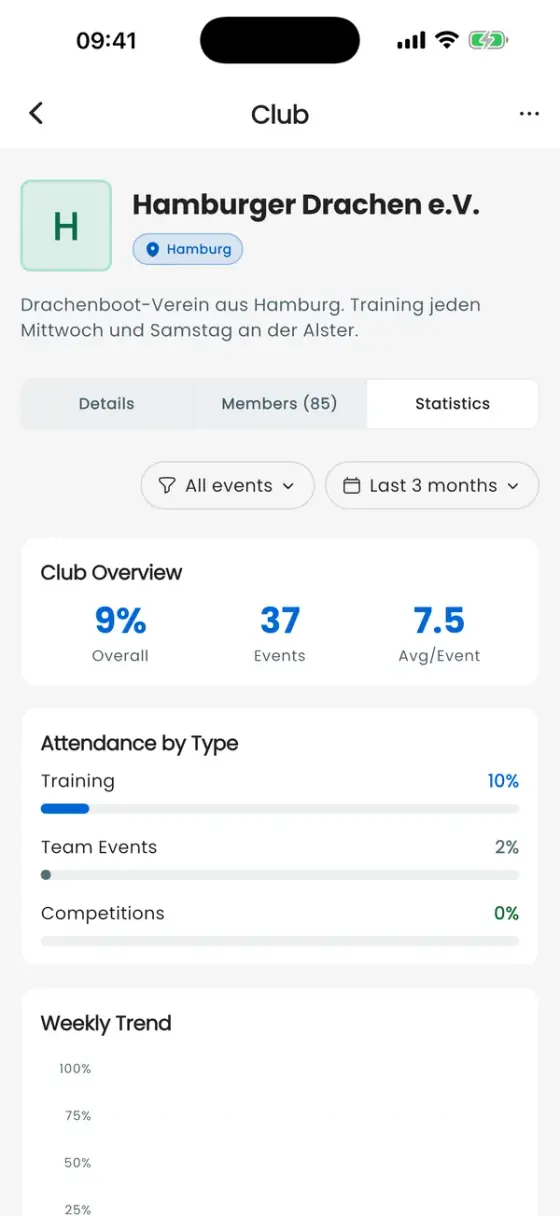
The club overview, weekly trend and Paddler Ranking → Events are based on RSVPs. Confirmed Participation separately shows crews confirmed by coaches. The workout overview analyses recordings: total distance, training time, sessions, active paddlers and charts for distance, pace and training days. Switch the ranking to Sessions and tap a person to see their workout history for the selected filters.
When figures are missing or differ
First check the club, date range and event types. An RSVP, a recording and a confirmed training are different sources: several recordings of the same event occurrence can become one training in My Season. Without a recording, distance and recorded metrics are missing; without a confirmed crew, current participation is missing from your season. Missing sensor readings or data that has not loaded can also leave sections empty. Use Retry if a loading error appears.