What the widget shows
Widgets show upcoming events from your clubs, including the time and club name. The size determines how many events fit. The data comes from your account: open the app while signed in first. Tapping a widget opens Events in the app.
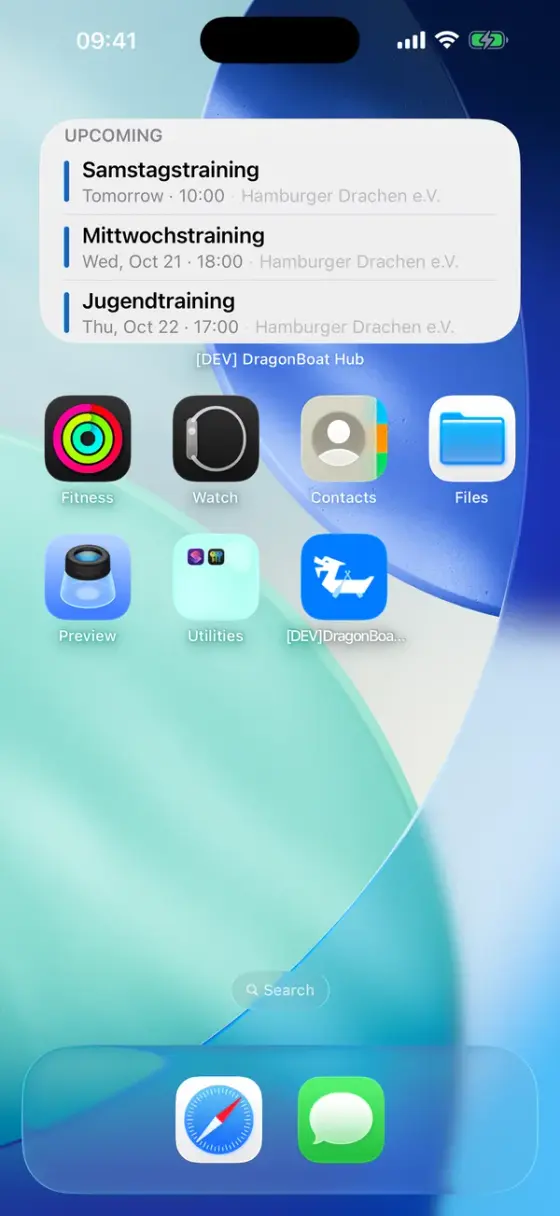
Add it on iPhone
- Touch and hold an empty area of your home screen.
- Open Edit → Add Widget and search for DragonBoat Hub. Older iOS versions use + to open the gallery.
- Swipe to the size you want, tap Add Widget, then finish arranging it with Done.
For the lock screen, touch and hold it, choose Customize → Lock Screen, then tap a widget area. DragonBoat Hub offers a rectangle below the clock and an inline widget in the upper area.
Add it on Android
Touch and hold an empty area of your home screen, open Widgets, and find DragonBoat Hub. Drag the small or medium widget onto the screen. Labels and resizing depend on your launcher.
Refresh or remove it
Reopening the app loads fresh widget data. Widgets are not a live display: the operating system schedules additional refreshes. If information is stale, open the app online and return to your home screen.
To remove a widget, touch and hold it and choose Remove Widget or Remove. Your events remain in the app. RSVP inside the event.